Digital Literacy Credential: Assigning Assessments
- Populate an Assessment Assignment Grid
The Assessment Assignments Grid can be populated any time before testing. To place all students from the class list into the Assessment Assignments Grid, click Add all in the top row to place all students from the class into the Assessment Assignments Grid. Individual students can be added by clicking the + next to the student’s name.

Individual students can be removed from the Assessment Assignments Grid by clicking the ‘x’ next to the student’s name.
You can search for a specific student throughout the entire organization by entering the student’s information in the Advanced Search section and clicking Search.

We recommend adding no more than 30 students to an Assessment Assignments Grid, so the Monitoring Assessment Screen functions properly. In the Assessment Assignments Grid, scores for any assessments already taken will be displayed next to the student’s name.
Assign Assessments
To assign the same assessment to all students in the grid, check the box in the assessment column at the top of the grid. The assessment column will be highlighted, and students will have checks by their names. Only assign one assessment at a time to keep the group of testers together. Ensure that testing accommodations are provided to students. If authorized, the amount of Extend Time will display in the assessment box in the same row as the student’s name.
Proctors can assign the Digital Literacy Assessment in English or Spanish. When the assessment is selected, the language selector icon will appear. It defaults to English (EN). To select Spanish, click on the blue EN icon and a pop up will appear with a language indicator. To select Spanish, click on the red ES icon. Selecting the language icon at the top of the grid will change the language for all assessments in the grid. Changes can be made for individual students by selecting the icon on the row with their name.
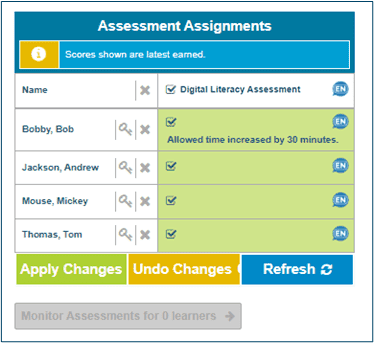
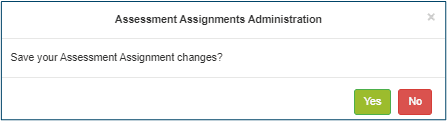
To save actions (assign or unassign), click Apply Changes. Confirm save by clicking Yes in pop-up.
To undo any actions prior to clicking Apply Changes, such as clearing the grid of checkmarks, click Undo Changes.